What App Permissions Actually Are
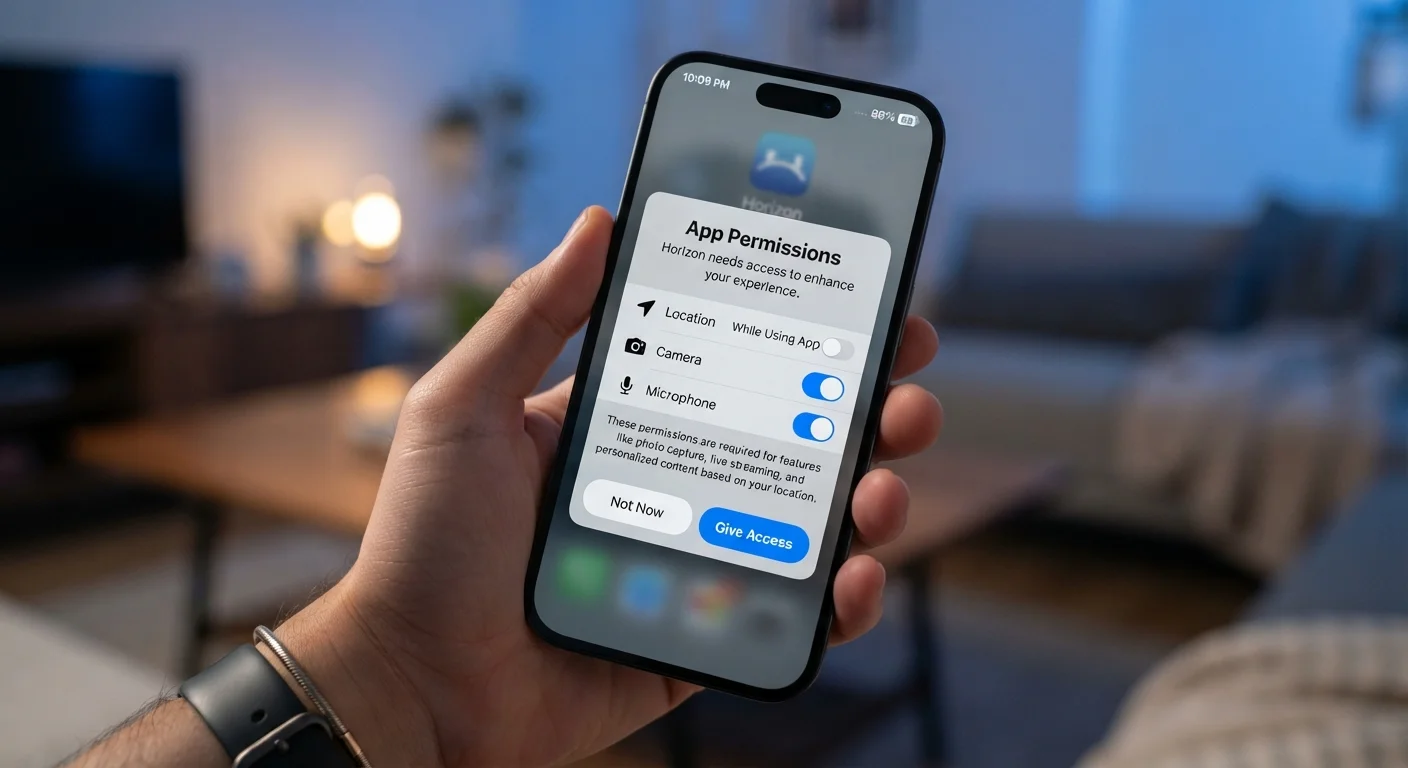
Every time you install an app and it asks to access your camera, contacts, or location, you're looking at an app permission request - a formal gate the operating system places between an app and your device's hardware or stored data. Without your approval, the app cannot cross that gate.
Permissions exist because your smartphone holds an enormous amount of sensitive information: your physical whereabouts, your private conversations, your health data, photos of your family, and your entire contact list. Operating systems like iOS and Android treat each category of data as a protected resource. Apps must ask for the key before they can use it.
What many people don't realize is that tapping "Allow" isn't just flipping a switch inside the app - it's instructing your device's operating system to open a pipeline from that app directly to a sensor or data store. That pipeline can remain open long after you've stopped thinking about it.
App permission
An explicit authorization you grant that allows an app to access a specific hardware feature or data category on your device, such as the camera or your location.
Operating system permission gate
A built-in security layer in iOS or Android that prevents apps from accessing sensitive features without your explicit approval.
Background access
Permission that allows an app to use a feature - like location - even when the app is not open or visible on your screen.
Precise vs. approximate location
Precise location uses GPS to pinpoint you within meters; approximate location provides only a general area. Most apps function fine with approximate location.
Permission manager
A built-in section of your phone's settings where you can see and change every permission granted to every app on your device.
Privacy nutrition label
A standardized summary shown in app stores that describes what data an app collects, how it's used, and whether it's linked to your identity.
The Most Common Permissions - Decoded
Permission labels can feel technical. Here's what they actually mean in plain terms:
- Location: Gives the app your physical position using GPS, Wi-Fi triangulation, or cell tower data. Many apps offer a choice between precise (exact GPS coordinates) and approximate (general area). Most apps need only approximate.
- Microphone: Allows the app to record audio through your phone's mic. Legitimate uses include voice messages, calls, and dictation. This permission warrants extra scrutiny when requested by apps with no clear audio function.
- Camera: Grants access to take photos or record video. Standard for photo editors or video chat apps - unusual for a flashlight or calculator.
- Contacts: Lets the app read your address book, including names, phone numbers, email addresses, and notes. Granting this shares data belonging to people who never consented to that app having it.
- Microphone + Contacts together: Combined, these can be used to identify and record conversations - a combination worth treating with care.
- Storage / Photos: Allows reading or writing files on your device. A photo-editing app clearly needs this; a puzzle game probably doesn't.
- Notifications: Enables the app to send alerts to your screen. Not a data-access risk on its own, but worth managing to reduce distraction and manipulation.
Understanding what each permission unlocks - rather than just the label - makes every future prompt easier to evaluate. This kind of literacy is also central to the practices covered in our online safety audit checklist.
When Permissions Make Sense (and When They Don't)
The core question to ask with any permission request is: Does this feature require this access to work? A navigation app genuinely needs your location. A recipe app asking for your contacts does not.
Watch Out for Permission Creep
Apps sometimes request additional permissions through updates, quietly expanding their access without drawing attention to the change. It's worth reviewing permissions after a major app update, especially if you notice new features you didn't ask for. A permission granted once doesn't expire automatically - you have to revoke it manually.
A few useful patterns to recognize:
- Contextually appropriate
- A video calling app requesting camera and microphone access is expected and necessary. A banking app requesting the same permissions should prompt you to ask why.
- Disproportionate access
- Games, utilities, and lifestyle apps that request contacts, microphone, or precise location with no obvious feature tied to that data are seeking more than they need. Data collected this way may be used for advertising profiling or sold to third parties.
- Timing of the prompt
- Both iOS and Android now trigger permission prompts at the moment an app first tries to use a feature, rather than at install. If an app asks for microphone access before you've done anything that would require it, that's worth pausing on.
This pattern of quietly expanding access is one of the digital habits that create risk without you realizing it.
How to Review and Revoke Permissions
You don't need to delete an app to take back a permission. Both major mobile platforms make this straightforward:
On iPhone (iOS)
- Open Settings and scroll to the app name, or
- Go to Settings > Privacy & Security and select a permission category (e.g., Location, Microphone) to see every app with access.
- Tap any app to change its access level or toggle it off entirely.
On Android
- Open Settings > Privacy > Permission Manager, or
- Long-press an app icon, tap the info icon, then select Permissions.
- Adjust each permission individually - options typically include Allow, Deny, or Allow only while using the app.
Pay particular attention to the "Always" location setting. Many apps default to requesting this, but "Only while using" is sufficient for the vast majority of use cases and meaningfully limits background tracking.
Use 'Only While Using' as Your Default
When given a choice, selecting 'Only while using the app' instead of 'Always' for location - and similar tiered options where available - is a practical default that preserves most functionality while reducing background data collection. You can always upgrade access later if a feature genuinely requires it.
Building a Smarter Permission Habit
Managing app permissions isn't a one-time task - it's an ongoing practice. A few simple habits make a real difference over time:
- Pause before you tap Allow. Ask whether the app's core function requires this access right now. You can always grant it later if needed.
- Do a quarterly audit. Set a recurring reminder to open your permission manager and review what's still active. Apps you barely use may be holding access you've forgotten about.
- Uninstall apps you no longer use. A dormant app with active permissions is a risk with no benefit.
- Check privacy labels before downloading. Both the Apple App Store and Google Play now show privacy nutrition labels summarizing what data an app collects and whether it's linked to your identity.
Permissions are just one layer of your device's privacy posture. For a broader view of where your digital life may have vulnerabilities, the online safety audit checklist walks through accounts, passwords, and app settings in a structured way. Similarly, if you're curious about how connected devices like smart speakers handle always-on microphone access, our piece on smart speakers and privacy covers that in detail.
Taking control of permissions doesn't require technical expertise - it requires only the habit of asking one question before you tap Allow: does this app genuinely need this to do what I'm asking it to do?