Why Bluetooth Is More Fragile Than It Looks
Bluetooth is remarkably capable technology - it streams audio, syncs health data, and links peripherals without a single cable. But its short-range radio design makes it sensitive to a surprising number of everyday conditions. When a pairing fails or a connection keeps dropping, there is almost always a specific, diagnosable reason. The problem is that most people skip the diagnosis and jump straight to random fixes, which is why the same issues keep returning.
Understanding the mechanics behind common Bluetooth mistakes is the fastest path to a stable connection - and to fewer moments of swearing at your wireless earbuds before a commute.
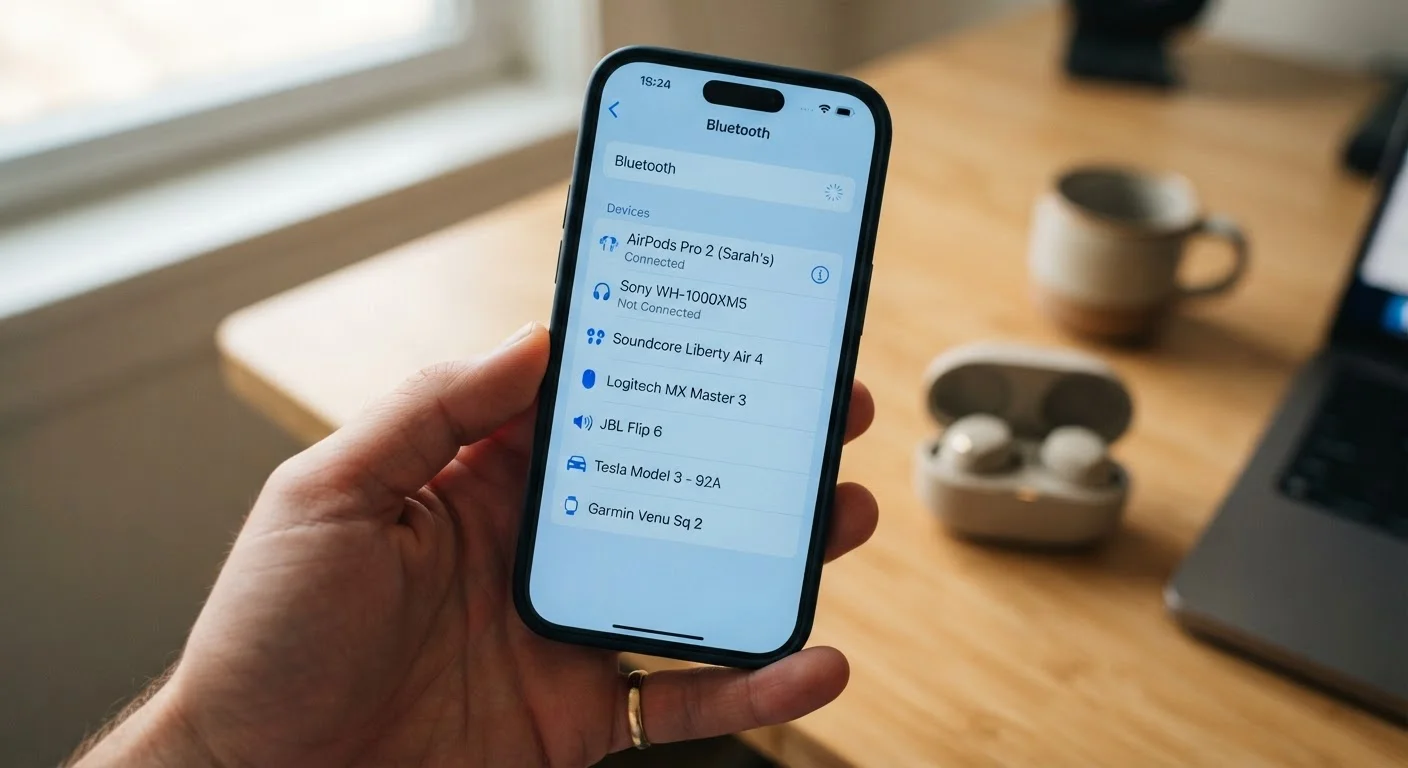
Never clearing old paired devices from the list.
Why it happens: People pair a device once and forget it exists in the saved list. Over time, phones and headsets accumulate dozens of ghost connections they try to manage simultaneously.
Attempting to pair while the device is still connected to another source.
Why it happens: Bluetooth accessories often auto-connect to the last known device the moment they power on, leaving them unavailable for a new pairing attempt even though they appear to be searching.
Ignoring physical distance and obstacles between devices.
Why it happens: Bluetooth's advertised range of roughly 30 feet assumes a clear line of sight. Walls, the human body, and metal surfaces all attenuate the signal significantly, but this is rarely obvious to users.
Skipping firmware and software updates on both devices.
Why it happens: Updating headphones or speakers feels unnecessary compared to phone updates. Most users only update the phone's operating system and overlook the companion app or device firmware.
Assuming all Bluetooth connections support all features.
Why it happens: Bluetooth uses different profiles - standards that define what data can be exchanged. A device paired for audio may not simultaneously support media controls, voice calls, or file transfer without the correct profile.
The Wireless Environment You're Ignoring
Bluetooth operates in the 2.4 GHz radio frequency band - the same band used by many Wi-Fi routers, microwave ovens, baby monitors, and older cordless phones. When those signals compete for the same airspace, interference degrades or breaks your Bluetooth connection. This is especially noticeable in apartment buildings, open-plan offices, or anywhere with dense Wi-Fi networks nearby.
2.4 GHz
Shared frequency band causing most interference
Bluetooth, many Wi-Fi networks, and common household electronics all compete within the same 2.4 GHz radio band, making congestion a primary driver of connection instability.
~30 ft
Bluetooth's theoretical maximum range
The 30-foot range cited for Bluetooth Class 2 devices assumes an unobstructed environment; walls, bodies, and interference routinely cut effective range to 15 feet or less.
Modern Bluetooth uses a technique called adaptive frequency hopping, which rapidly cycles through dozens of channels to avoid interference. But in extremely congested environments, this mechanism can only do so much. Moving your paired devices closer together, switching your router to the 5 GHz band where supported, or simply relocating away from a microwave while it runs can make an immediate difference.
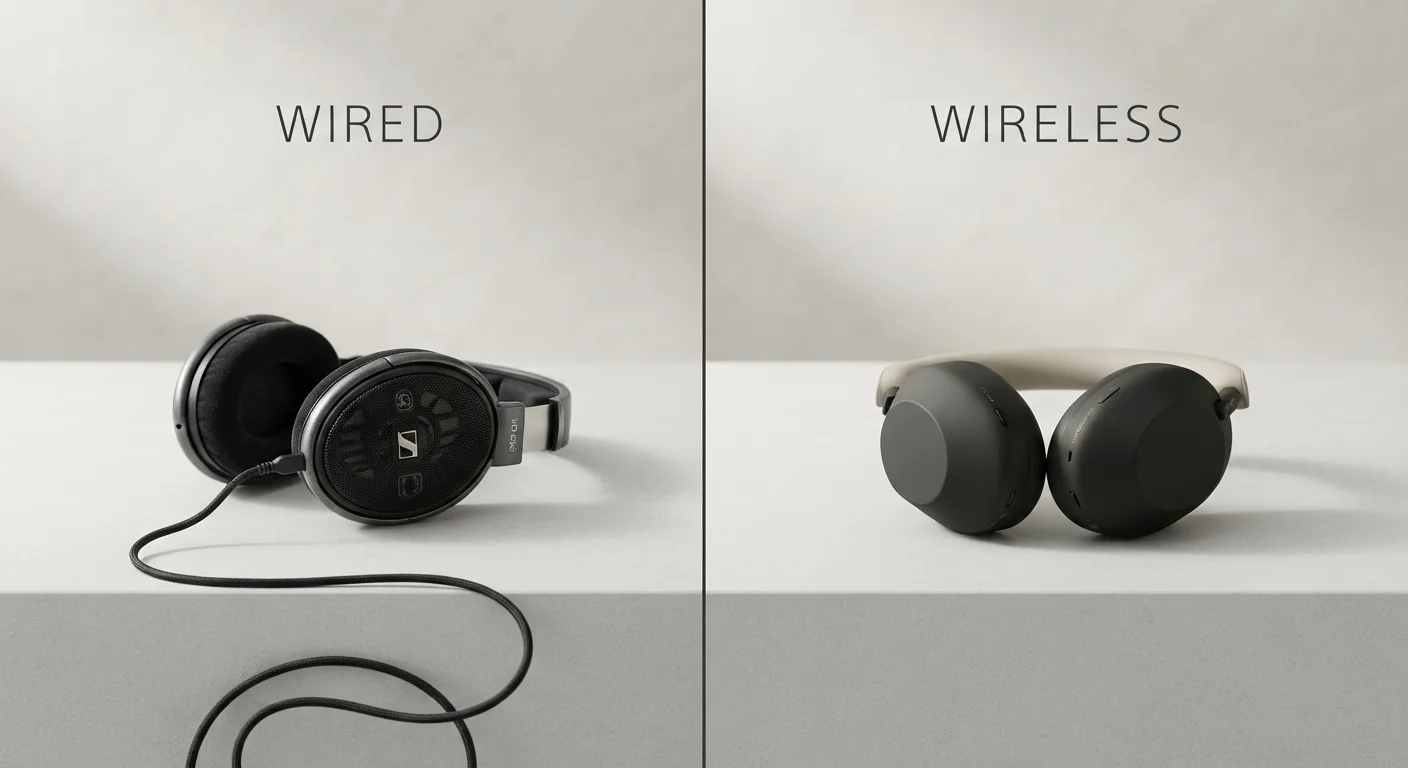
If you're weighing the trade-offs between wireless convenience and connection reliability more broadly, our comparison of wired and wireless headphones covers the stability differences in depth.
When to Stop Troubleshooting and Reset
There's a point in every Bluetooth troubleshooting session where small tweaks stop helping. That's typically the signal to perform a full reset: forget the device on both ends, power each device completely off, then re-initiate pairing from scratch. This clears corrupted pairing data that can build up over time and is often the only fix for devices that show as connected but produce no audio or input.
Don't Skip the 'Forget Device' Step
Simply turning a device off and on again does not clear corrupted pairing data. If you skip the 'forget device' step on both your phone and the accessory before re-pairing, the same bad data gets restored immediately. Both ends of the connection must forget each other completely before the re-pair will have any effect.
For persistent problems that survive a full reset, check the manufacturer's support page for firmware updates. Bluetooth firmware patches frequently address known compatibility bugs and are among the most overlooked maintenance steps for wireless accessories. If the device remains unreliable after a firmware update and a clean re-pair, the hardware itself - or a physical obstruction in the signal path - is worth examining before assuming a software fault.