Why 2FA Matters - and Where Setup Goes Wrong
Two-factor authentication (2FA) requires you to verify your identity using two separate methods - typically something you know (your password) and something you have (your phone or a hardware key). Even if a thief steals your password, they can't log in without that second factor. As explored in our guide on why strong passwords still get compromised, credentials alone are rarely enough to keep accounts safe.
The irony is that 2FA setup itself can create a lockout risk if done carelessly. The most common mistakes: skipping backup codes, enrolling only one verification method, or enabling 2FA on a device you're about to replace. This guide walks you through a setup process designed to prevent those exact problems.
What you will need
What You'll Need Before You Start
Gather these resources before touching any account settings. Rushing the setup without preparation is the primary cause of self-inflicted lockouts.
Authenticator App
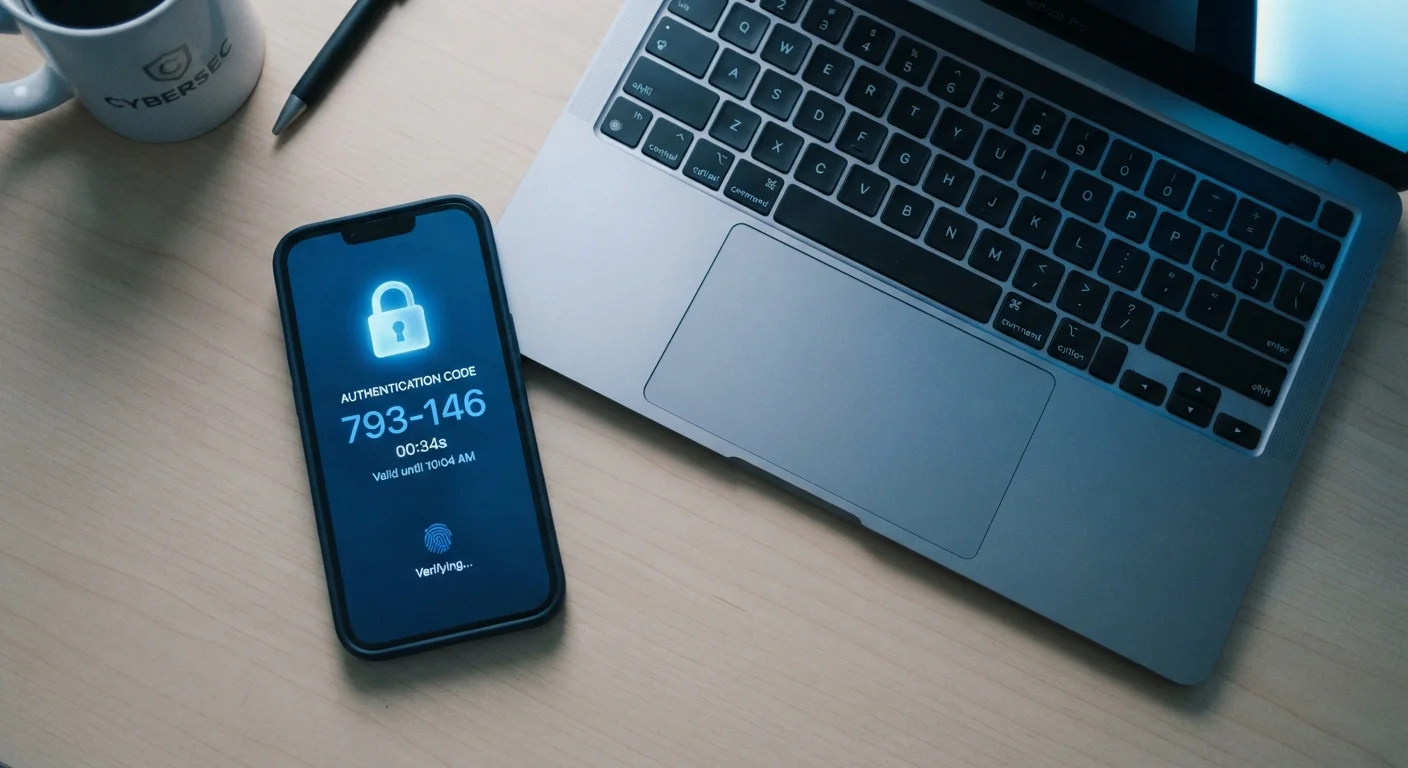
Generates time-based one-time codes (TOTP) on your phone without relying on cellular service - more reliable and secure than SMS.
SMS-Capable Phone Number
Used as a fallback verification method if your authenticator app is unavailable; required by many platforms.
Secure Storage for Backup Codes
A printer, locked drawer, or encrypted notes app to store the one-time recovery codes provided during setup.
Secondary Email Address
Acts as an additional account recovery option on platforms that support it, providing another path back in if you lose your phone.
Step-by-Step Setup
Follow these steps in order. Each one builds on the last, and skipping ahead - especially past the backup codes step - undermines the safety net you're trying to build.
Start with your most critical account: email
Your email account is the master key to nearly everything else - password reset links for other services flow through it. Enable 2FA on your primary email address before any other account. If an attacker gains access to your email, they can bypass 2FA on linked accounts by resetting passwords. Securing email first closes that door.
Choose an authenticator app over SMS where possible
Navigate to your account's security settings and look for "Two-Factor Authentication" or "Two-Step Verification." When given a choice, select an authenticator app rather than SMS. SMS codes can be intercepted through SIM-swapping attacks - a known vulnerability where a bad actor convinces your carrier to transfer your number to their device. Authenticator apps generate codes locally on your phone, making them harder to intercept.
Save your backup codes immediately - before completing setup
Almost every platform generates a set of single-use backup codes during the 2FA enrollment process. These codes let you log in if you ever lose your second factor. Download or write them down before you click "Finish" or "Confirm." Many people skip this step, assuming they'll never need the codes - until they do. Store them offline in a physically secure location, not only in a cloud folder.
Register a backup phone number or secondary method
Where the platform allows it, add a secondary verification method - a backup phone number, a secondary authenticator, or a hardware security key. This redundancy is your safety net if your primary method becomes unavailable. Think of it as a second spare key, not a replacement for the first.
Test your 2FA before logging out of your current session
Open a private or incognito browser window and attempt to log in to the newly protected account. Confirm that the 2FA prompt appears, that your authenticator app or backup method works, and that you can complete the login successfully. Do this while your original session is still active - if something is misconfigured, you can fix it without being locked out.
Repeat for other high-value accounts
Work through financial accounts, cloud storage, social media, and any service connected to your email. Prioritize accounts that hold financial data, personal documents, or serve as login methods for other services (such as accounts used for "Sign in with Google" or "Sign in with Apple"). For a structured approach, see the guide on password habits that leave accounts exposed for context on which accounts carry the most risk.
Authenticator App Transfers Take Planning
If you're switching phones, transfer your authenticator accounts before wiping your old device - not after. Most authenticator apps include a transfer or export feature. If you wipe the old phone first, you may lose access to every account protected by that app simultaneously. Check your app's documentation for the correct transfer procedure before starting a device swap.
After Setup: Staying Out of Trouble
Once 2FA is active, treat your backup codes like a spare house key: store them somewhere physically secure (a locked drawer or a printed document in a safe), and never save them only on the device you use to log in. If you store backup codes exclusively on your phone and lose that phone, you've lost both factors at once.
Periodically review your enrolled 2FA methods - especially after getting a new phone or changing your phone number. Most platforms let you manage trusted devices and revoke old sessions from your account security settings. If you ever replace a device, disable and re-enroll 2FA on the new hardware before wiping the old one.
For a broader review of your account security posture, the Online Safety Audit checklist can help you identify additional weak spots. And if you're building long-term security habits, Digital Safety Practices Worth Building Before Something Goes Wrong covers proactive measures that complement 2FA effectively.
Don't Rely Solely on SMS Long-Term
While SMS-based 2FA is far better than no 2FA at all, it carries known vulnerabilities including SIM-swapping. If the accounts you're protecting involve financial data or sensitive personal information, transitioning to an authenticator app or hardware key is worth the small extra effort. Many platforms support multiple 2FA methods simultaneously, so you can add a stronger option without removing SMS as a fallback.