
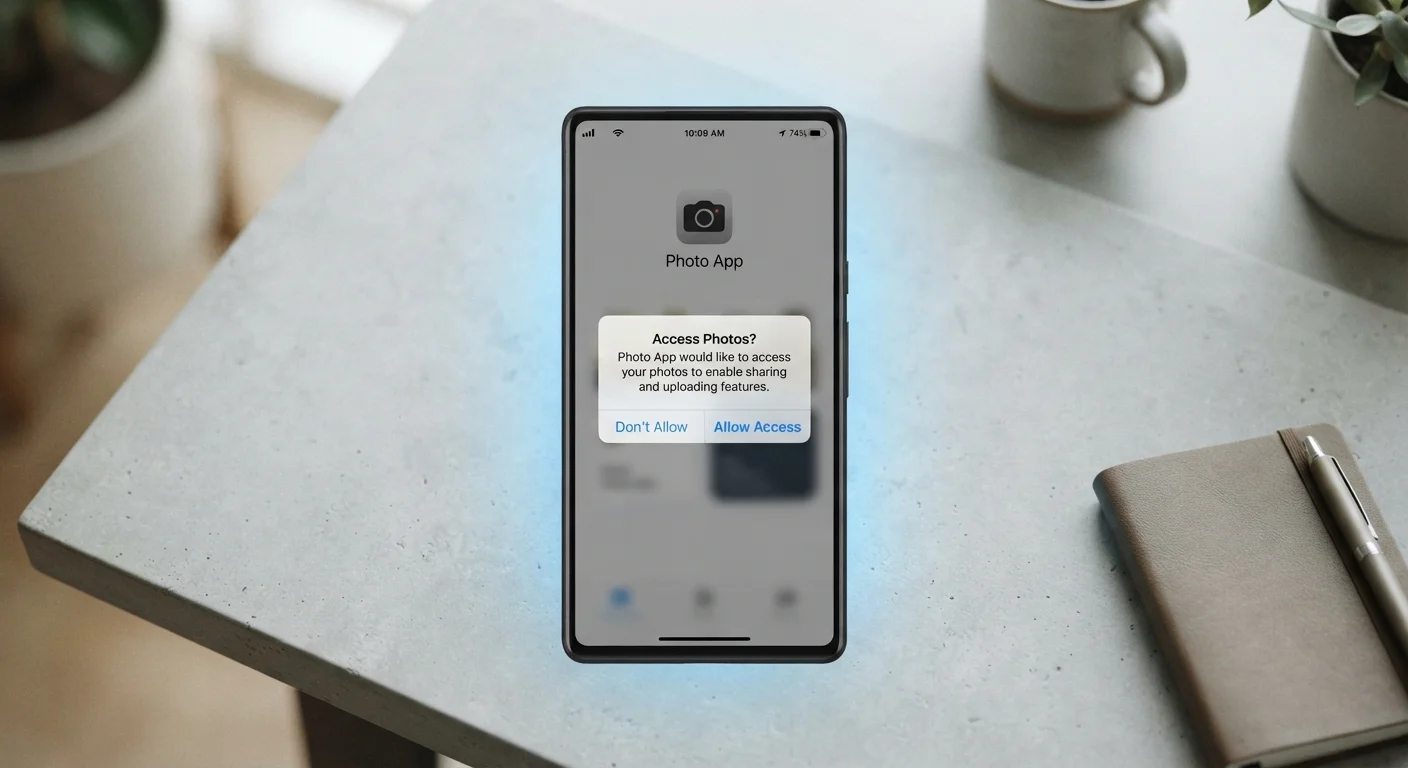
What Permission Requests Actually Mean
When an app or website asks for your permission, it's requesting access to a specific hardware feature or data store on your device - not just information about your account. That distinction matters. Location access doesn't mean the app knows your email address; it means the app can read your physical coordinates from your device's GPS. Microphone access means software can activate your mic and process audio, even if you're not actively speaking into it.
Operating systems - iOS, Android, and desktop browsers - act as intermediaries that enforce these boundaries. An app cannot access your camera or contacts without triggering a system-level prompt that you must respond to. This protection is meaningful, but it only works if you engage thoughtfully with those prompts rather than reflexively tapping 'Allow' to get past them.
Understanding what you're granting is the foundation of a broader set of digital habits that affect your privacy - most of which require only small changes to meaningfully reduce your exposure. Browsers operate similarly: when a website requests access to your location or microphone, the browser acts as the gatekeeper and your response sets a persistent rule for that site. For more on how browsers handle your data beyond permissions, see our guide on what browsers actually do with your data.
Schedule a Quarterly Permission Review
Set a reminder every three months to open your phone's privacy or app settings and scan for permissions you no longer recognize or need. This is especially useful after installing many apps during a busy period. Pairing this habit with a broader account review - such as the steps in our online safety audit checklist - can help you catch issues you'd otherwise miss.
Step-by-Step: Evaluating and Managing Permissions
What you will need
Device Settings App
Used to view, manage, and revoke permissions granted to individual apps on iOS or Android.
Browser Privacy / Site Settings
Used to review and manage permissions granted to websites, such as camera, microphone, and notifications.
App Store or Play Store Listing
Used to read what permissions an app requests before installing it, so you can decide in advance.
Understand the six most common permission types
Before acting on any prompt, it helps to know what you're actually being asked to share. The most frequently requested permissions are:
- Location: Your physical coordinates, either precise (GPS-level) or approximate (city/region).
- Camera: The ability to take photos or video through your device's camera.
- Microphone: The ability to record audio, including ambient sound in your environment.
- Contacts: The names, phone numbers, and email addresses stored on your device.
- Notifications: The ability to send alerts to your screen even when the app is closed.
- Storage / Photos: Read or write access to files and images saved on your device.
Websites in your browser can request similar access - typically location, camera, microphone, and notifications - through prompts that appear at the top of the browser window.
Apply the purpose-match test before granting access
The most reliable decision framework is asking one question: Does this permission make sense for what this app or site is supposed to do?
- A navigation app requesting location: clear match.
- A video calling app requesting camera and microphone: clear match.
- A recipe app requesting contacts: no obvious match - pause and investigate.
- A news website requesting microphone access: no clear match - deny.
If a permission doesn't fit the app's stated purpose, deny it by default. Most apps work fine without every permission they ask for, and features that genuinely require a permission will prompt you again at the moment they're needed.
Choose the most limited access level offered
Modern mobile operating systems offer granular options rather than a simple yes/no. For location, for example, you may be offered:
- Never - the app cannot access location at all.
- While using the app - access is granted only when the app is open and in the foreground.
- Always - the app can access your location at any time, including in the background.
As a rule, select While using the app unless there is a specific, clear reason the app needs background access (such as a navigation app actively guiding you on a trip). For most apps, 'Always' is unnecessary and expands your exposure without adding meaningful benefit to you.
Browser permissions are typically binary - allow or block - but you can revisit them at any time through site settings.
Review permissions already granted on your device
On iOS: Go to Settings → Privacy & Security. Each permission type (Location Services, Camera, Microphone, etc.) shows a list of every app that has been granted access. Tap any app to change its level or revoke access entirely.
On Android: Go to Settings → Privacy → Permission Manager. You can browse by permission type to see which apps hold each one, then adjust individually.
In desktop browsers: Look for a privacy or site settings panel - typically found under the browser's main menu - where you can see a list of sites that have been granted camera, microphone, location, or notification access.
Pay particular attention to apps you installed long ago and rarely use. Dormant apps holding live permissions are an easy area to clean up.
Handle notification permissions as a separate category
Notification permission deserves special attention because it's often requested immediately on first launch - before you've had a chance to assess whether the app is useful. Notifications don't access hardware, but they do represent an ongoing channel into your attention and can be used to drive behavior.
A practical approach: deny notification access by default when first installing an app. If you later find you genuinely want alerts from that app, grant it then. On both iOS and Android, you can manage notification permissions per-app under Settings → Notifications.
Permissions Are Not Always Reversible in Effect
Revoking a permission stops future access, but it does not delete data already collected. If an app accessed your contacts or location before you revoked the permission, that data may already have been transmitted to the app's servers. This is why evaluating permissions before granting them is more effective than cleaning them up afterward.
Overly Broad Permissions Are a Common Pattern
Some apps request access to microphone, contacts, or location not because their core features require it, but to build advertising profiles or share data with third parties. A flashlight app that requests microphone access, or a simple game that wants your contacts, are examples where the request doesn't match the function. When in doubt, deny and see if the app still works.
Applying these steps consistently takes only a few minutes at installation time and a periodic review afterward. The result is a device where only the apps and sites that genuinely need access to your hardware and data actually have it - a concrete improvement in your online safety posture that doesn't require technical expertise. For a broader review of your device and account settings, the online safety audit checklist is a useful companion resource. And if you're thinking about permissions in the context of voice-activated devices, our piece on smart speakers and privacy covers how those systems handle always-on listening.