Your Device Already Has Powerful Tools You May Be Ignoring
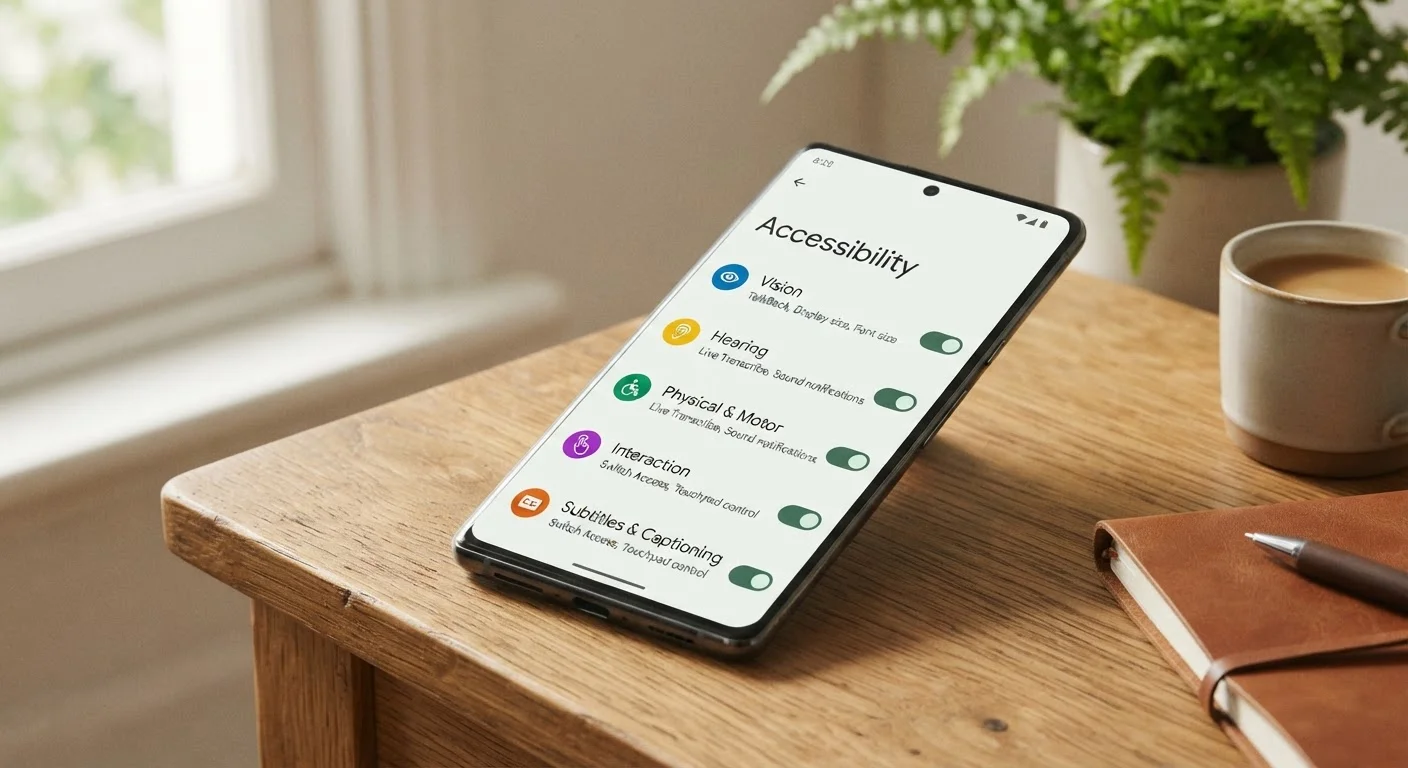
Every major operating system - iOS, Android, Windows, macOS - ships with a robust suite of accessibility features designed to make devices usable for people with a wide range of needs. But here's what surprises many users: these tools aren't exclusively for people with disabilities. They're for anyone who finds small text straining, background noise distracting, or touchscreens frustrating to navigate.
Accessibility settings have quietly evolved into one of the most practical corners of any device's settings menu. Larger text can ease fatigue during long reading sessions. Captions make videos watchable in noisy environments. Voice control can let you operate your phone with your hands full. If you've never explored this area, you're likely leaving genuine daily value on the table.
The list below covers five features worth knowing - what they do, where to find them, and why they might improve your experience even if you've never needed them before. For a broader orientation to your device's settings and specs, see our plain-language device terminology guide.
Display Text Size and Bold Text
Both iOS and Android let you increase the system-wide text size independently of zoom level. On iPhone, go to Settings > Accessibility > Display & Text Size. On Android, look under Settings > Accessibility > Font size. Enabling Bold Text in the same menu increases character weight, making letters easier to distinguish even at standard sizes.
This matters for anyone who reads a lot on their phone - news articles, emails, or messages - particularly in lower-light conditions. It also helps when handing a device to an older family member who struggles with small type.
Increasing text size takes seconds and can meaningfully reduce daily eye strain for any user.
Live Captions
Live Captions generates real-time, on-screen text for any audio playing on your device - videos, podcasts, calls, or voice messages. Android has offered this natively since Android 10 (find it under Settings > Accessibility > Live Caption). Apple introduced a similar feature for iPhone and Mac users in more recent OS versions under Settings > Accessibility > Live Captions.
The practical uses go well beyond hearing assistance. Captions make content watchable without headphones in public spaces, help when audio quality is poor, and support comprehension when content uses unfamiliar accents or fast speech. Processing generally happens on-device, which limits the data sent to external servers.
Live Captions make any audio content followable without headphones - useful in nearly any public setting.
Voice Control and Voice Access
Apple's Voice Control (iOS/macOS, under Settings > Accessibility > Voice Control) and Google's Voice Access (a free Android app) let you navigate your entire device using spoken commands - not just search queries, but taps, swipes, scrolling, and text input. You can say things like "scroll down," "open Settings," or "tap Send."
This goes far deeper than a standard voice assistant. It's useful when your hands are occupied - cooking, exercising, or carrying items - and for anyone who finds touch input tedious or physically uncomfortable. The learning curve is modest, and most commands are intuitive natural-language phrases.
Voice Control turns your voice into a full navigation tool, not just a search shortcut.
Display and Color Adjustments
Under the same Accessibility menu, you'll find options to reduce motion (limits animations that can feel dizzying), increase contrast (sharpens the distinction between interface elements), and apply color filters designed for different types of color vision. There's also a Reduce White Point slider on iOS that dims the brightest areas of the display without affecting overall brightness.
These aren't just accessibility accommodations - they're display fine-tuning tools. If standard brightness controls leave your screen feeling too harsh in a dim room, or if interface animations cause discomfort, these options give you granular control that the main display settings don't offer.
Reduce Motion and contrast tools give you display control that standard brightness sliders simply can't match.
AssistiveTouch and Gesture Shortcuts
AssistiveTouch on iPhone (found under Settings > Accessibility > Touch) places a floating on-screen button that replicates physical button presses - home, volume, lock - and can be customized to trigger frequently used actions. Android offers a similar concept through Accessibility Menu and various gesture shortcut settings.
Beyond motor assistance, these tools are practical for anyone with a cracked volume button, a device that's difficult to hold in certain positions, or simply a preference for fewer physical taps. You can assign specific accessibility features to triple-click the side button (iOS) or the home button (Android), making toggling features on and off nearly instant.
AssistiveTouch can replace broken buttons and speed up access to the settings you use most.
Start Small, Then Customize as You Go
Accessibility settings aren't all-or-nothing. You can enable one feature, test it for a day, and turn it off if it doesn't suit you - there's no commitment required. Most changes take effect immediately and are reversible in seconds.
Find Everything in One Place
On most devices, the fastest route to all accessibility features is a single shortcut: search "Accessibility" in your device's Settings search bar. This bypasses any menu navigation and surfaces every relevant option in one list. On iOS, you can also add an Accessibility Shortcut to the Control Center for features you toggle often.
One underappreciated angle: these features can also complement smart home and voice assistant setups. If you rely on voice commands through a speaker or phone assistant, understanding how your device handles voice input and audio output gives you more control over that experience. Our guide to smart speakers and voice assistants covers the privacy side of that equation worth reviewing alongside these settings.
Accessibility isn't a niche - it's a design philosophy that makes technology work better for more people in more situations. The features below are a practical starting point.