Why Your Battery Seems to Disappear
Most people assume a dying battery means an aging phone. That's sometimes true - lithium-ion batteries do degrade over time - but in many cases, the real culprits are invisible processes running quietly in the background. Understanding what actually drains your battery gives you real control over your device's stamina.
Modern smartphones juggle dozens of tasks simultaneously: syncing email, refreshing social feeds, tracking your location, and maintaining wireless connections. Each of these tasks draws power, and when several run at once without your awareness, the drain adds up fast. The good news is that most of these drains are adjustable.
~30%
Battery impact from screen brightness alone
Display power consumption accounts for a significant share of overall smartphone battery use, with estimates from hardware researchers commonly ranging around 30% of total draw.
80+
Average apps installed per US smartphone user
Research from mobile analytics firms has found US smartphone users commonly have over 80 apps installed, many running background processes the owner isn't aware of.
The Most Common Battery-Draining Mistakes
The following mistakes are the most frequent reasons a smartphone battery underperforms - and each one is correctable without buying a new phone or charging cable.
Leaving background app refresh enabled for every app.
Why it happens: Most phones enable this feature by default, and users rarely visit the settings menu to audit it. Apps use it to pre-load content so they open faster.
Running screen brightness at or near maximum all the time.
Why it happens: Auto-brightness is sometimes inconsistent, leading people to manually crank brightness and forget to lower it indoors.
Keeping location services on for every installed app.
Why it happens: Apps frequently request location access during setup, and users often approve broadly without reviewing which apps actually need it.
Ignoring software updates, leaving power-inefficient code running.
Why it happens: Updates can feel disruptive, and people often postpone them indefinitely. However, OS updates frequently include battery optimization improvements.
Allowing too many apps to send push notifications.
Why it happens: Notification permissions are often granted during app onboarding without a second thought. Each notification wakes the screen and triggers a brief burst of processor and network activity.
Using Wi-Fi, Bluetooth, and cellular data simultaneously when only one is needed.
Why it happens: These radios stay on by default, and toggling them feels inconvenient. Many users don't realize radios searching for a signal - such as Bluetooth scanning or a weak cellular connection - consume more power than a stable connection does.
Charging Habits That Quietly Damage Battery Health
How you charge your phone matters as much as what runs on it. Repeatedly draining a battery to zero before charging - or leaving it plugged in at 100% for extended periods - can accelerate the natural degradation of lithium-ion cells. Most device manufacturers and battery researchers suggest keeping charge levels somewhere between roughly 20% and 80% as a general pattern for preserving long-term capacity, though everyday life doesn't always allow for that precision.
Avoid Overnight Charging on Low-Quality Chargers
Leaving your phone plugged into an uncertified third-party charger overnight introduces risks beyond just battery health - including overheating. Where possible, use chargers certified to your device manufacturer's standards and avoid placing a charging phone under pillows or on soft surfaces that trap heat. Heat is one of the most damaging factors for lithium-ion battery longevity.
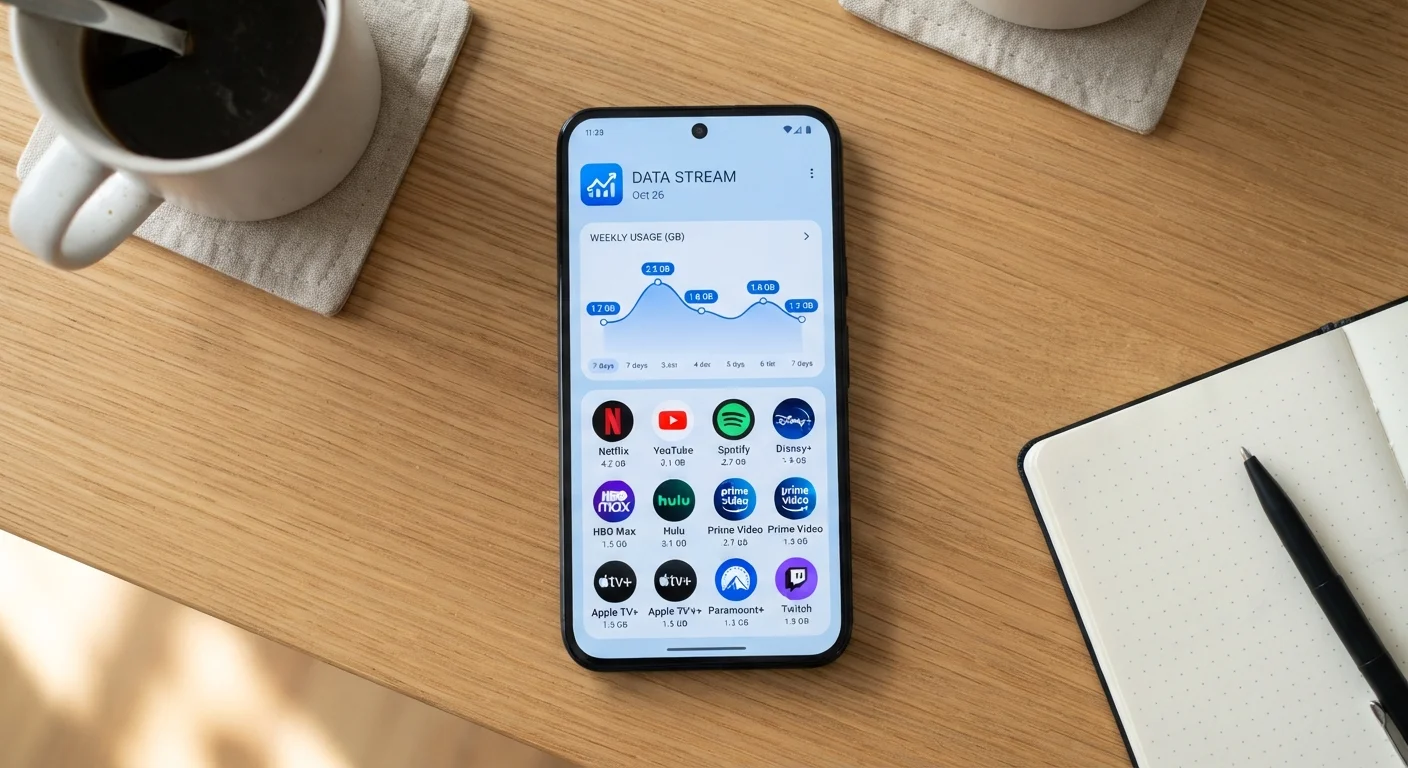
Streaming habits also play a role. Video apps running at high quality settings sustain both screen brightness and mobile data activity simultaneously - a particularly effective combination for draining power. If you're curious about how much those apps consume beyond just battery, see our breakdown of streaming app data usage for a closer look.
Battery drain, much like small financial leaks, often isn't one dramatic problem - it's many minor ones accumulating unnoticed. Addressing them one by one makes a genuine difference.