Why Streaming Data Consumption Varies So Much
Not all streaming is created equal. A podcast episode running in your earbuds while you commute barely dents your data allowance. A two-hour 4K movie on a streaming platform, however, can consume more data than many households used in an entire month just a decade ago. The gap comes down to one core technical factor: bitrate - the volume of digital information delivered to your device each second.
Higher picture or sound quality requires more data per second to maintain. When you select a higher resolution or quality setting, the app delivers a richer, denser stream of information. Lower settings compress that information more aggressively, sacrificing some visual or audio fidelity in exchange for reduced data throughput.
Beyond quality, several other variables shape your actual consumption:
- Duration: Longer sessions multiply data use linearly - two hours uses roughly twice the data of one hour at the same quality.
- Adaptive streaming: Most platforms automatically adjust quality based on connection speed, which can cause data use to fluctuate mid-session.
- Content type: Fast-action scenes in video require more data than slow, static ones, even at the same resolution setting.
~7 GB
Data used per hour of 4K streaming
Per-hour 4K Ultra HD data estimates cited by major streaming platforms in their support documentation range from approximately 7 GB upward depending on codec efficiency.
~1 GB
Data used per hour of SD video streaming
Standard definition streaming is widely estimated at around 1 GB per hour, making quality selection one of the most impactful levers for data conservation.
~150 MB
Data used per hour of audio streaming
Audio-only streaming at standard quality typically consumes well under 200 MB per hour, a fraction of video's footprint at any resolution.
The Hidden Costs: Background Caching and App Behavior
One of the least understood sources of streaming data consumption is activity that happens when you're not actively watching anything. Many streaming apps run background processes that quietly draw on your data allowance.
Pre-caching is a common example: apps like video platforms often load the first few minutes of recommended content before you press play, improving perceived loading speed but consuming data proactively. Similarly, apps may refresh their content libraries, download algorithm-driven recommendations, or sync watch history in the background.
Check Background Data Settings on Your Device
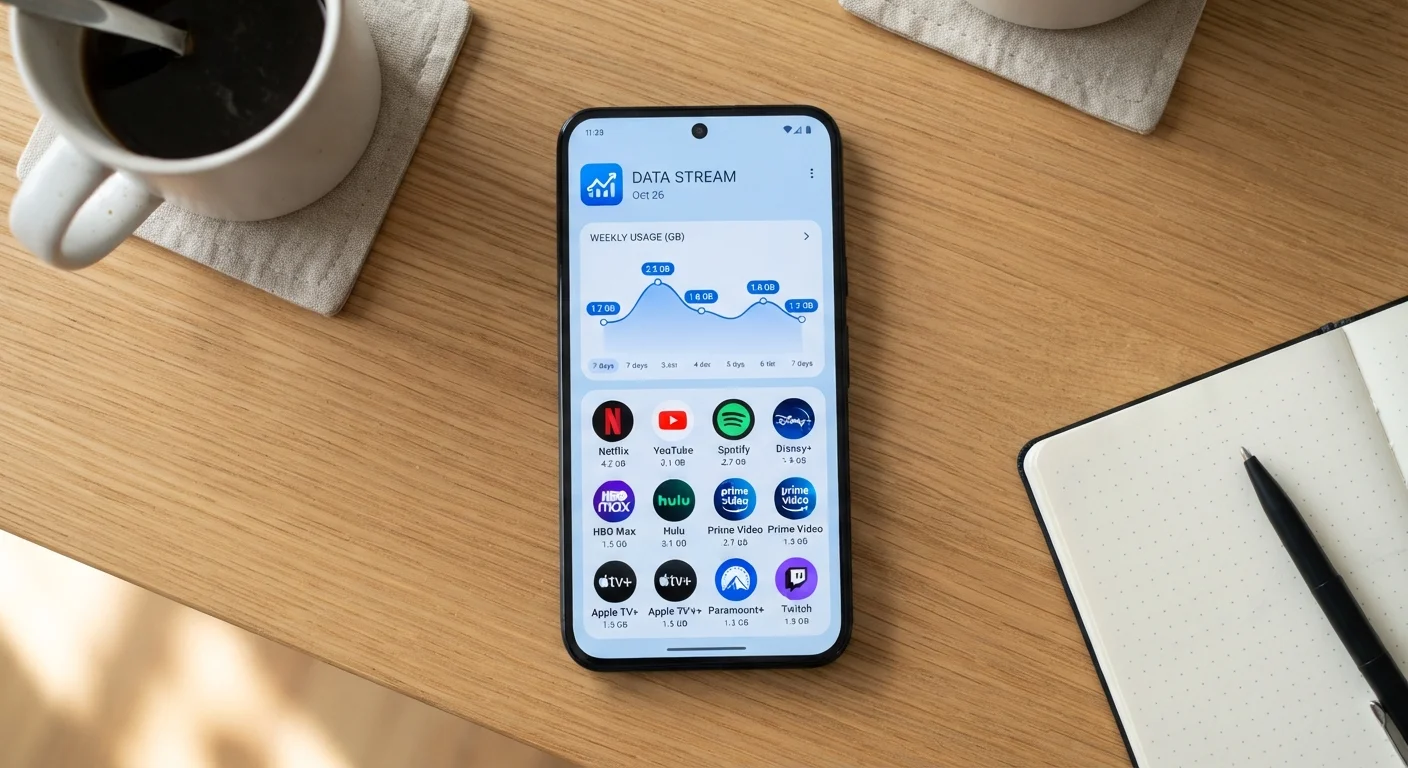
On iPhone, go to Settings > Cellular and scroll to see per-app cellular usage. On Android, go to Settings > Network & Internet > Data Usage to view and restrict background data by app. Restricting background data for streaming apps you don't use constantly can meaningfully reduce unintended consumption without affecting active use.
This is worth paying attention to if you have a capped mobile data plan. A streaming app you haven't opened all day can still register megabytes - sometimes more - in cellular data usage. On Android and iOS, your device settings let you view per-app data consumption and toggle off background data access for individual apps, which is a practical first step. This kind of invisible consumption is similar in principle to the slow financial drains that accumulate unnoticed until you look closely at the numbers.
Practical Ways to Monitor and Manage Your Usage
Understanding consumption is only useful if you can act on it. The good news is that both the apps themselves and your device's operating system provide tools to help.
In-App Quality Settings
Most major streaming platforms include quality controls in their settings menus. Look for options labeled "video quality," "playback settings," or "data saver." Many apps offer a specific mobile data mode that automatically reduces quality when you're on a cellular connection while allowing higher quality over Wi-Fi.
Device-Level Monitoring
Your phone's settings provide a per-app breakdown of cellular data used within a given billing cycle. This is the most reliable way to see which apps are actually consuming the most data - the results are often surprising. If you notice an app consuming data you didn't expect, check whether background data or auto-play features are enabled.
Wi-Fi Offloading
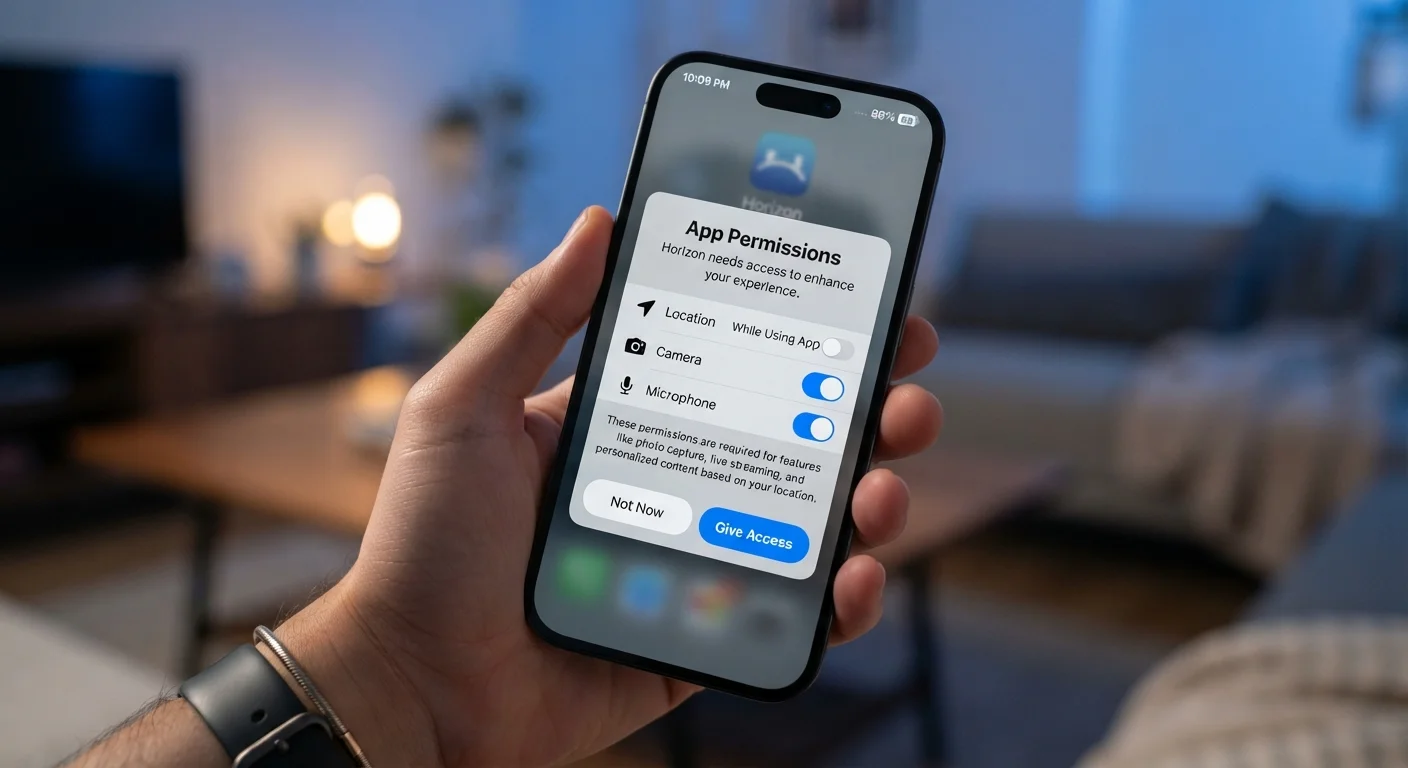
Whenever possible, shifting streaming to a Wi-Fi connection removes the impact from your mobile data cap entirely. Configuring apps to only download cached or offline content over Wi-Fi is a straightforward setting available in most streaming apps. Related to this, it's worth understanding how apps behave more broadly - our guide on what app permissions actually access covers the broader picture of what's happening in the background.
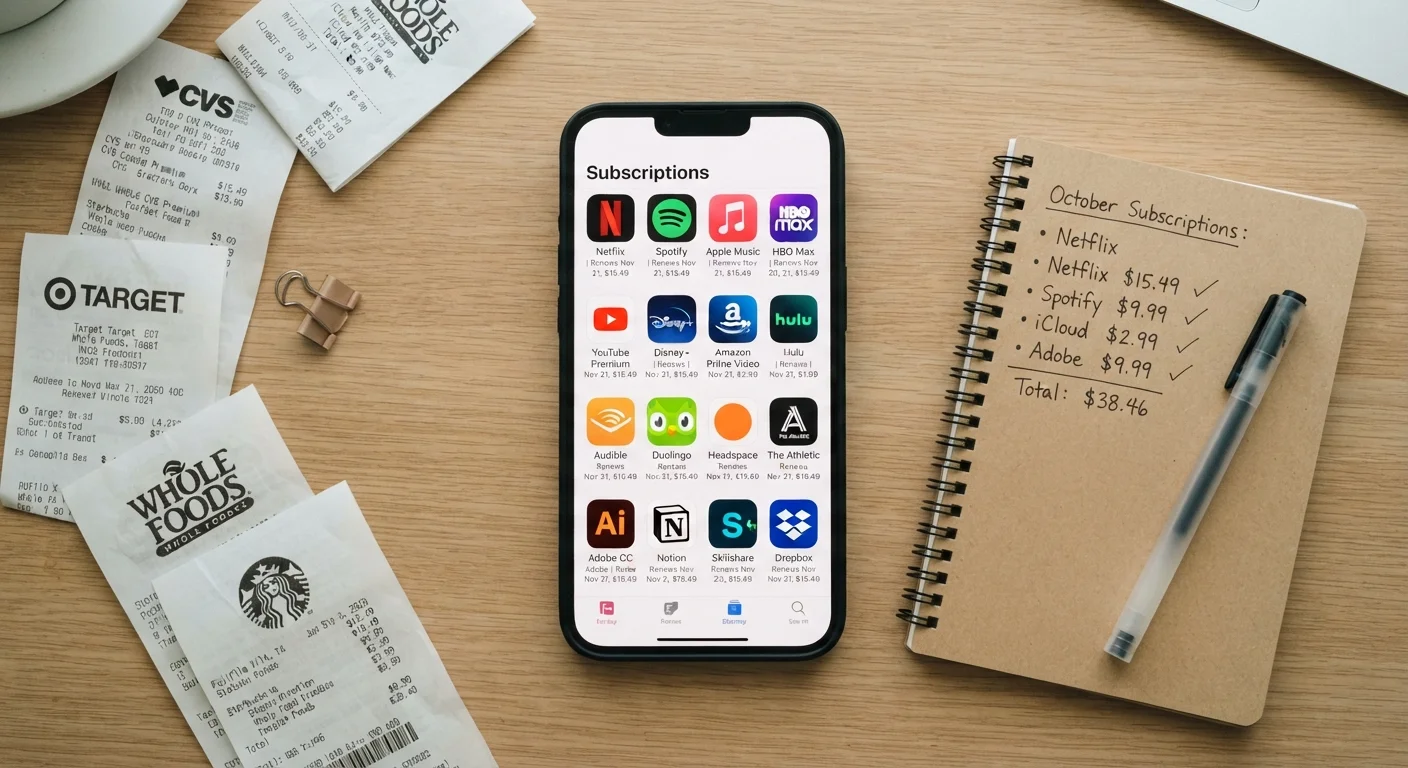
For households tracking subscription costs alongside data, it may also be worth auditing what you're actually using - see our look at managing subscription app fatigue for a structured approach.