What a Modem Actually Does
Your internet connection starts outside your home - at a wire or fiber line run by your ISP. The signal traveling through that line isn't in a format your laptop or phone can understand. That's the modem's job: it modulates and demodulates signals, translating between your ISP's transmission format and the digital data your home devices speak.
The word "modem" is actually a contraction of modulator-demodulator, which describes exactly what it does. Depending on your connection type - cable, fiber, or DSL - your modem is designed to handle that specific signal. A cable modem, for instance, works with coaxial lines; a fiber modem (often called an ONT) converts light pulses from a fiber cable into usable data.
Without a modem, your home has no pipeline to the internet at all. It's the point where your ISP's network ends and your home network begins.
Modem
A device that translates signals from your ISP's network into digital data your home devices can use, and vice versa.
Router
A device that distributes a single internet connection among multiple devices in your home and manages local network traffic.
Gateway device
A single piece of equipment that combines modem and router functions - commonly provided by ISPs.
IP address
A unique numerical label assigned to each device on a network, used to identify where to send and receive data.
Ethernet
A standard wired connection method used to link devices like modems, routers, and computers using a physical cable.
Bridge mode
A setting that disables a gateway's routing functions so a separate router can manage the network instead.
What a Router Adds to the Picture
A modem gives you one internet connection. A router takes that single connection and shares it among every device in your home - phones, laptops, smart TVs, thermostats, and more. It assigns each device its own local IP address, manages data traffic so requests don't collide, and acts as a basic firewall between your home network and the public internet.
Routers also create your Wi-Fi network. The wireless signal you connect to is broadcast by the router (or by additional access points the router manages). The router decides how to direct each packet of data - whether that's your streaming video, a video call, or a file download - to the right device at the right time.
For a deeper look at the terminology surrounding these concepts, the plain-English internet glossary is a useful companion reference.
Wired Beats Wireless for Stability
If you have a desktop, gaming console, or smart TV that stays in one place, connecting it directly to your router via an ethernet cable provides a faster and more reliable connection than Wi-Fi. Reserve wireless for devices that genuinely need to move around.
How Modems and Routers Work Together
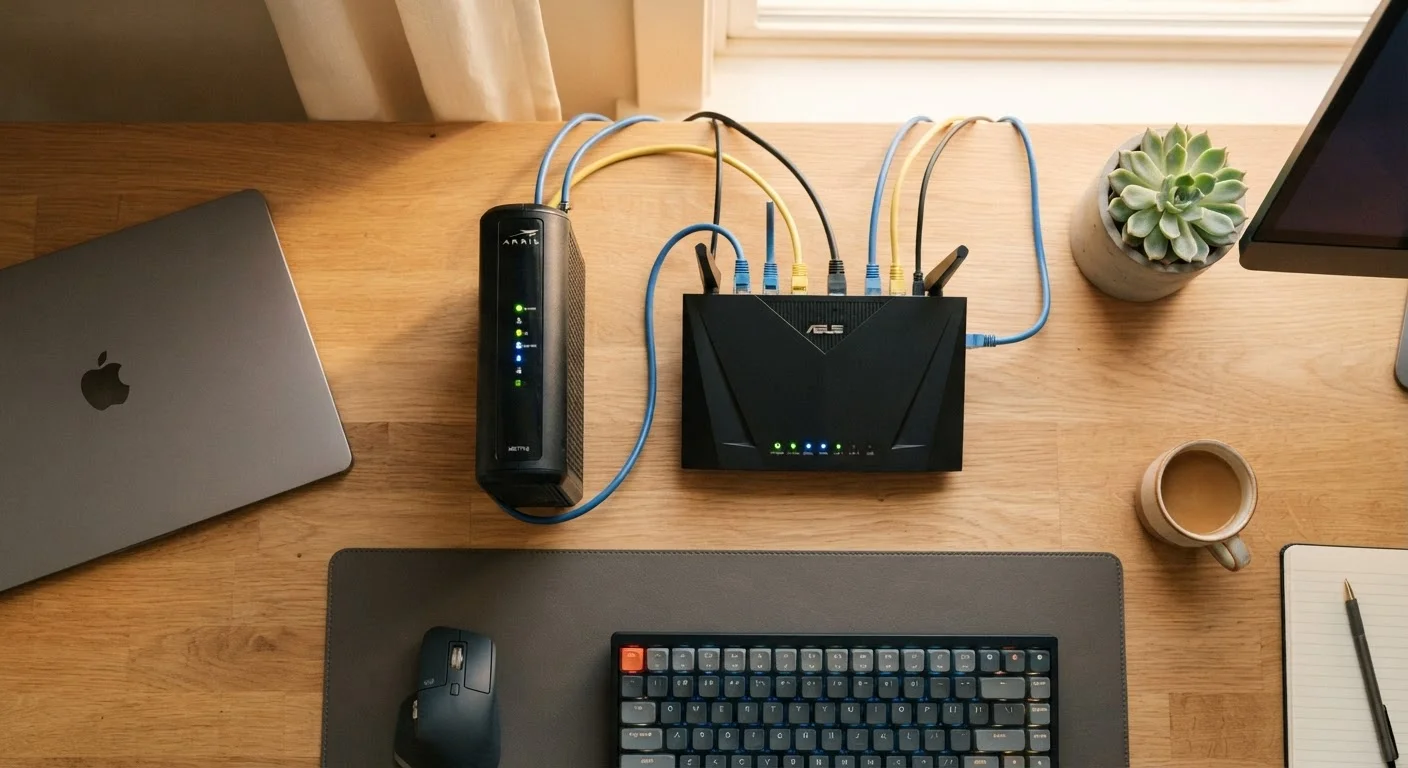
In a two-device setup, the modem and router are connected by a short ethernet cable. Data flows in a clear sequence:
- Your ISP sends a signal over your incoming line to the modem.
- The modem translates that signal into digital data and passes it to the router via ethernet.
- The router distributes the data wirelessly or via cables to your individual devices.
- When your device sends a request - loading a webpage, for example - the path reverses.
This handoff happens continuously and near-instantly. Understanding the sequence makes troubleshooting much easier: if no devices can reach the internet, the problem is likely the modem or your ISP's line. If some devices can connect but others can't, the router is the more probable culprit.
Network speed is another dimension of this system. The guide to internet speed numbers covers how Mbps and latency relate to your actual experience streaming or video calling.
Gateway Devices: When It's One Box
Many ISPs supply a gateway device - a single unit that combines modem and router functions. Gateways are convenient: one power cord, one device to manage, and your ISP can often configure it remotely. They're common in cable and fiber installations.
The trade-off is flexibility. A combined unit may not offer the same Wi-Fi range, advanced settings, or security controls as dedicated separate devices. If you later want to upgrade just your router - say, to a mesh system for a larger home - a gateway can complicate the setup.
Watch Out for Double NAT
If your ISP's gateway is acting as a router and you plug in your own router behind it, both devices will try to manage your network - a situation called double NAT. This can cause issues with online gaming, video calls, and certain smart home devices. Ask your ISP about enabling bridge mode on the gateway if you want to add your own router.
One practical option some households use is placing a gateway into bridge mode, which disables its routing functions so a separate router takes over. This avoids the problem of "double NAT" (where two devices are both trying to manage your network addresses), though the specifics vary by ISP and device. It's worth asking your ISP about this option if you want more control.
Common Questions and Practical Decisions
Once you understand the roles of each device, a few practical questions become easier to answer:
- Should I rent or own my equipment? Renting from your ISP is simple but carries a monthly fee. Purchasing compatible equipment outright can reduce long-term costs - though you're responsible for your own troubleshooting and upgrades.
- When should I reboot which device? For most connectivity problems, restart the modem first, wait 30 seconds, then restart the router. This re-establishes the connection from the ground up.
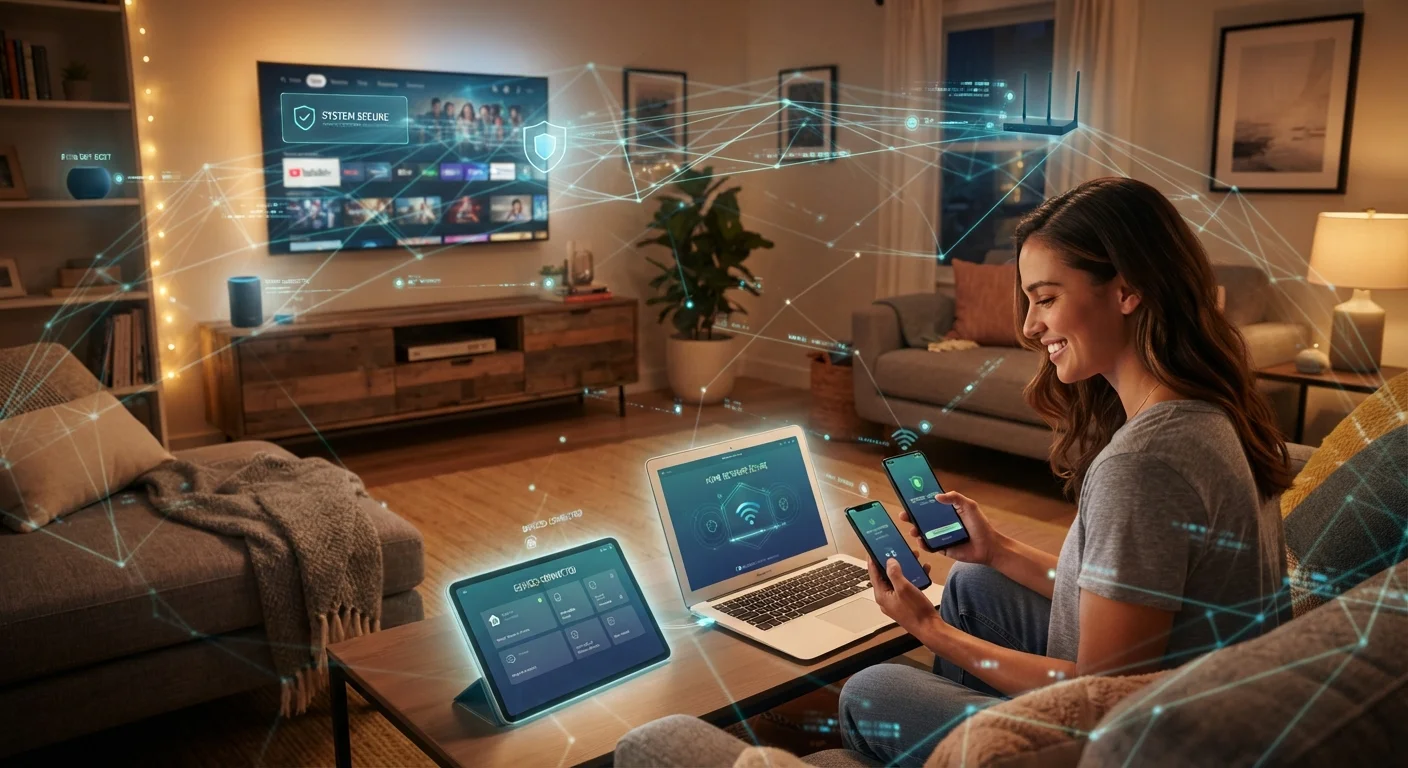
- How does this relate to home security? Your router is your home network's first line of defense. Keeping its firmware updated and using a strong Wi-Fi password are foundational steps. The guide to securing devices on a shared home network goes into practical detail on this.
Just as knowing the location of your electrical panel or water shutoff empowers you as a homeowner - as covered in the plain-language guide to home systems - understanding your network equipment puts you in a stronger position to manage your digital household confidently.
FCC Broadband Consumer Guide
The Federal Communications Commission publishes plain-language resources on broadband types, speeds, and consumer rights - a reliable reference for understanding what your ISP is required to disclose.
Internet Speed Test Tools
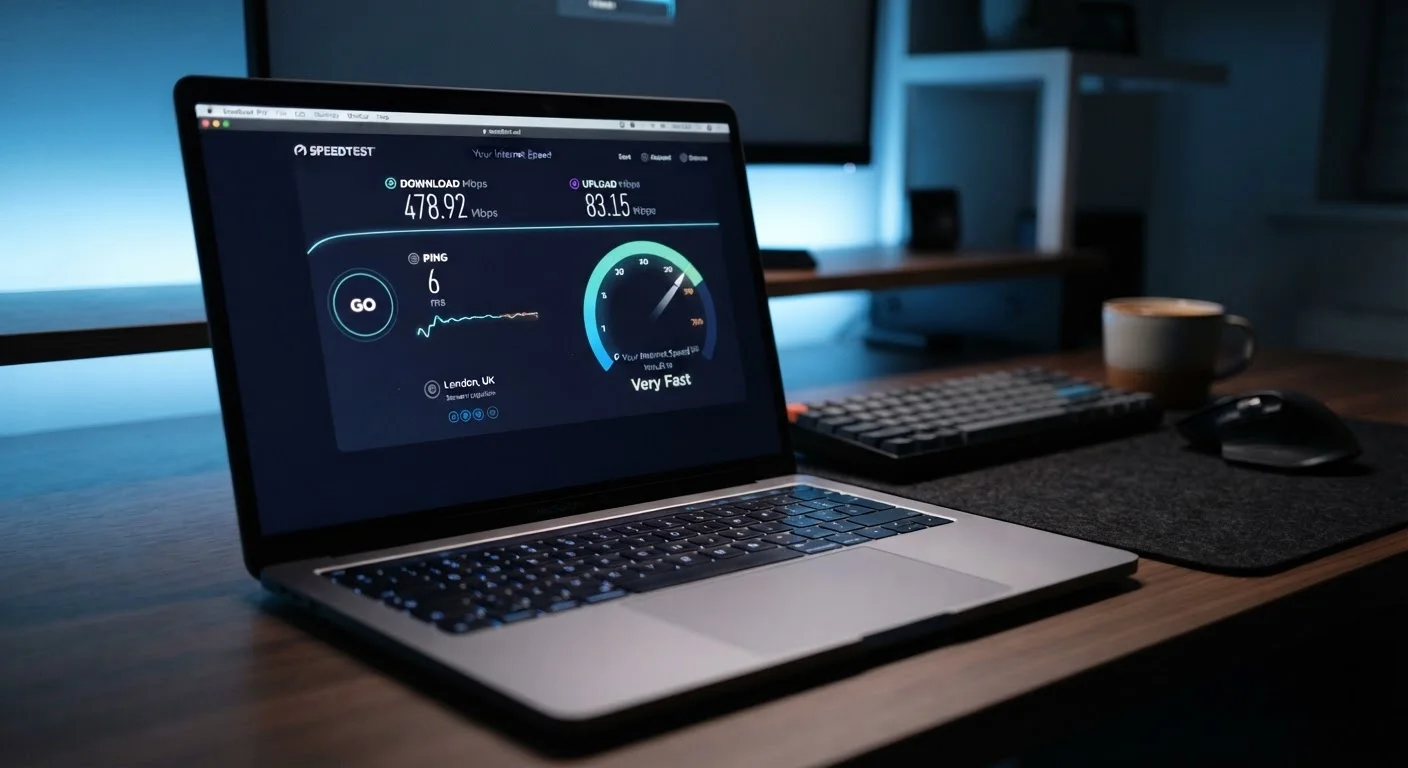
Free browser-based speed tests let you measure your actual download and upload speeds. Running one before and after rebooting your equipment can help pinpoint whether a slowdown is a home network issue or an ISP-side problem.