Why Your Home Router Deserves More Attention
Your router is the gateway every device in your home uses to reach the internet - and every device on the internet could theoretically try to reach back through it. Yet most households configure a router exactly once (or never), leaving factory-default settings in place for years. If you're new to thinking about home security in digital terms, the online safety primer is a good place to start building context.
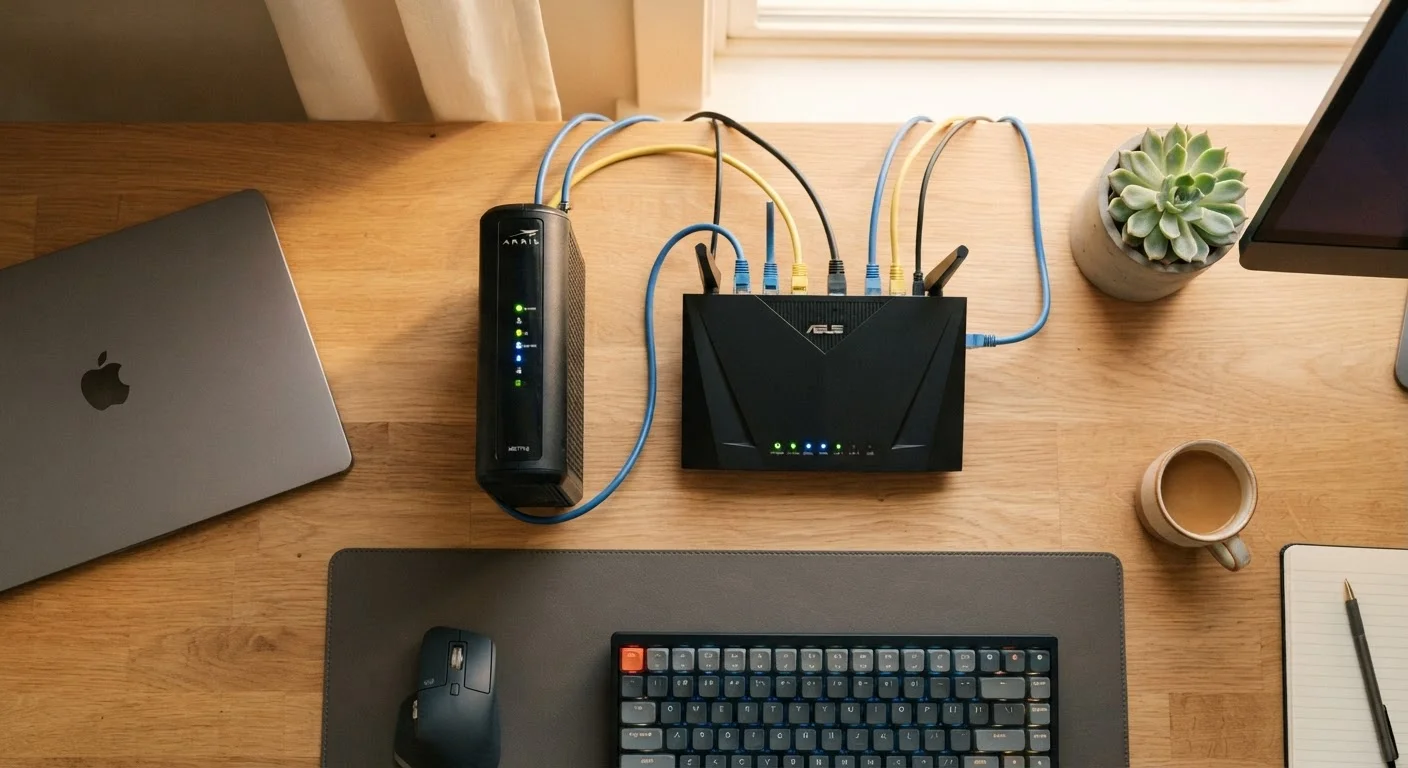
Understanding how modems and routers work together can also make these steps easier to follow. You don't need to be technical to make meaningful improvements - most of these changes take only a few minutes each and require nothing more than a browser and a few minutes of patience.
What you will need
Web browser or router app
Used to access your router's admin interface where all settings are changed.
Password manager
Helps you generate and securely store strong, unique passwords for your router and Wi-Fi network.
Router documentation or model number
Lets you look up the specific admin panel address and default credentials for your router model.
Step-by-Step: Locking Down Your Router
Work through the steps below in order. Each one addresses a specific, well-documented vulnerability. If a setting isn't visible on your router's admin panel, consult your router's manual or the manufacturer's support page - terminology varies across brands.
Log into your router's admin panel
Open a web browser on any device connected to your home network. In the address bar, type your router's local IP address - commonly 192.168.1.1 or 192.168.0.1. If neither works, check the label on the back or bottom of your router, or refer to the manufacturer's documentation. Enter the admin username and password when prompted.
Change the default admin username and password
Navigate to the section labeled Administration, System, or Router Settings - the exact label varies by manufacturer. Replace the default admin credentials with a strong, unique passphrase. Default usernames like admin and passwords like password are publicly documented and are among the first things an attacker will try.
Set your Wi-Fi password and choose strong encryption
Locate the Wireless or Wi-Fi section of your admin panel. Set a strong, unique network password - separate from your admin password. Then look for the Security or Encryption setting and select WPA3 if available, or WPA2 if your router doesn't yet support WPA3. Avoid WEP and WPA, which are outdated and can be cracked with freely available tools.
Rename your network (SSID)
Your network name - called an SSID - is visible to anyone nearby scanning for Wi-Fi. Change it from the factory default (which often includes the router brand or your ISP's name) to something that doesn't identify your address, your name, or your device model. Revealing the router brand helps an attacker know which default credentials to try first.
Enable a guest network for visitors and smart devices
Most modern routers support a separate Guest Network. Enabling one lets visitors use your internet connection without joining the same network as your computers, phones, and sensitive accounts. It's also a good place to connect smart home devices - TVs, thermostats, and speakers - which often receive security updates less reliably than phones and computers.
Update your router's firmware
Firmware is the built-in software that runs your router. Manufacturers release updates to fix security vulnerabilities. Look for a Firmware Update or Software Update option in the admin panel - some routers check automatically, while others require you to initiate the check manually. Apply any available updates before finishing.
Disable remote management
Remote management allows your router to be accessed from outside your home network - a feature most households don't need and that expands your attack surface. Find this setting under Administration or Advanced Settings and confirm it is turned off. While you're there, also disable UPnP if you don't specifically need it; UPnP can allow apps on your network to open ports automatically without your knowledge.
Revisit These Settings Annually
Router security isn't a one-time task. Set a reminder to log back in once a year to check for firmware updates, review which devices are connected, and confirm your settings haven't been reset. This habit takes less than ten minutes and keeps your baseline protection current.
Once your home network is tightened up, you may also want to think about how devices behave outside the home. Public Wi-Fi carries different risks that home network settings can't address. And for households sharing one network across many people, shared network security practices offers additional guidance on segmentation and device hygiene.
What These Changes Actually Do for You
No single setting makes a network impenetrable, but taken together, these steps remove the low-hanging fruit that automated scans and opportunistic attackers typically look for. Changing default credentials eliminates a known, documented vulnerability. Strong encryption means that even if someone can detect your network traffic, decoding it becomes computationally impractical. Guest networks limit the damage if any one device is compromised. Firmware updates close holes the manufacturer itself has flagged as risks.
Securing your router also complements broader account security habits. Weak or reused passwords remain a leading cause of account compromise - the guide on password security explains why complexity alone isn't enough and what practices actually reduce your exposure.
A Secure Router Doesn't Replace Device Security
Hardening your router reduces risk at the network level, but individual devices still need their own protections: operating system updates, strong account passwords, and thoughtful app permissions. Think of your router as the lock on the front door - the rooms inside still need their own precautions.